
Triumph of the Heart – Media Player Manual for MacOS
1. Download the App
Visit Download page and Sign In using your email
Click the white Download for macOS button.
If Safari asks "Do you want to allow downloads from this page?", click Allow.
Look at the top-right corner of your browser for the downward arrow icon ( ↓ ). Click it, then click the downloaded file to open it.
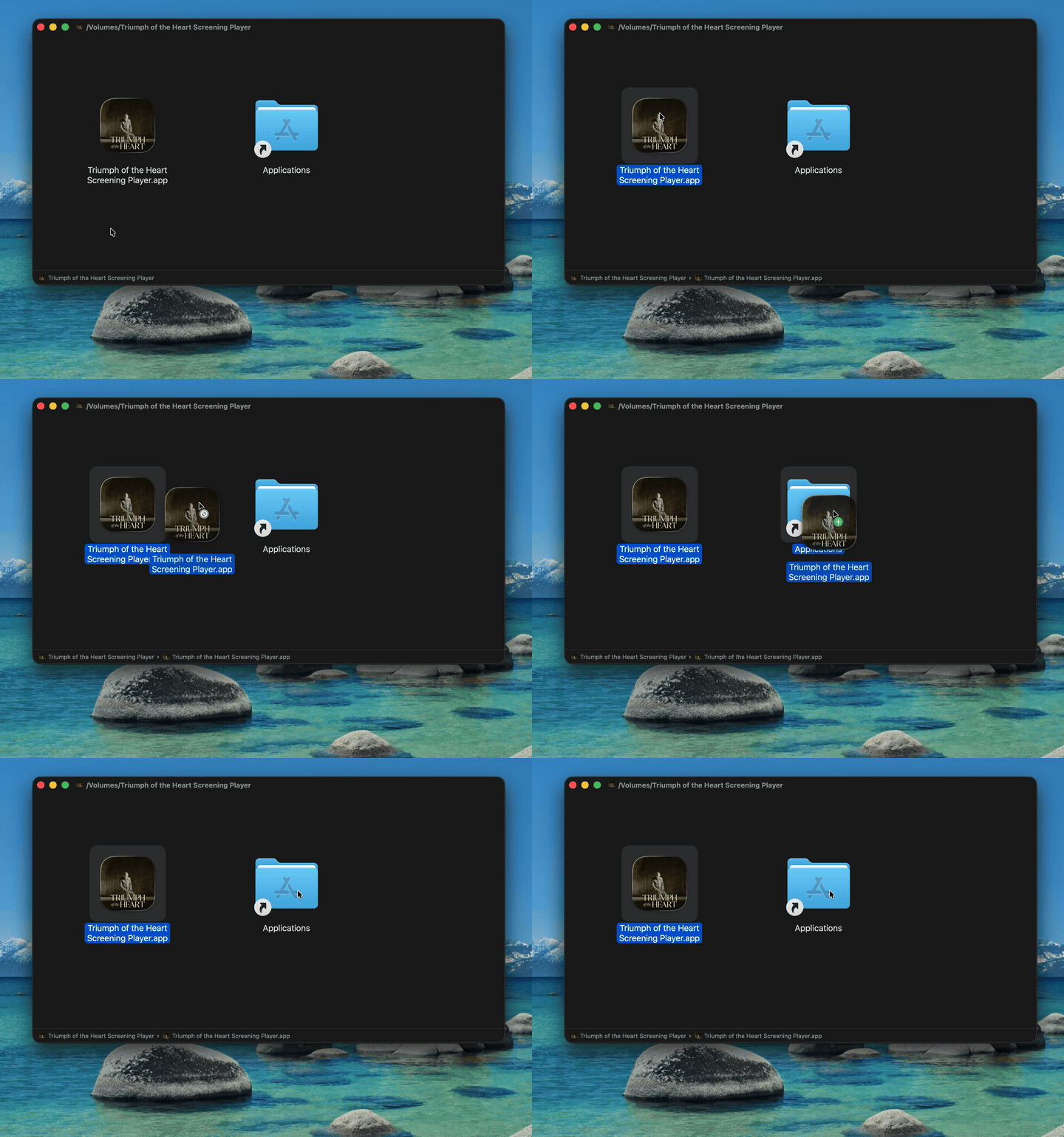
2. Install to Your Mac
A window will pop up showing two icons side-by-side.
Click, hold down the mouse button, and drag the Triumph of the Heart icon to the right, dropping it directly on top of the Applications folder icon. (Do not double-click the icon here—it must be dragged into the folder first).
Wait a few seconds until the small copy sound or loading bar finishes.
3. Open the App
Look at the dock along the bottom of your screen:
Click the smiling two-tone face (Finder), then click Applications on the left menu.
(Alternatively, click the Launchpad icon with colored app squares).
Find Triumph of the Heart and double-click it.
If a security message asks "Are you sure you want to open it?", click Open.
4. Sign In
Type in the email address you used to register.
Without closing the app, open your email to find your verification code.
Return to the app (click its icon on the bottom dock if it hid behind your browser) and enter your code.
5. Download the Movie
Click the Download Movie button inside the app.
Keep the app open and your Mac awake until the progress bar reaches 100%.
Tip: Complete this step as soon as possible before your screening so the film is saved directly to your computer and will play smoothly without needing Wi-Fi.
You are ready for your event!
Thank you for bringing this story to your community. We wish you a deeply moving, fantastic screening experience. Reach out anytime if you need support along the way!
Triumph of the Heart Team